 Nask AI
Key takeaways
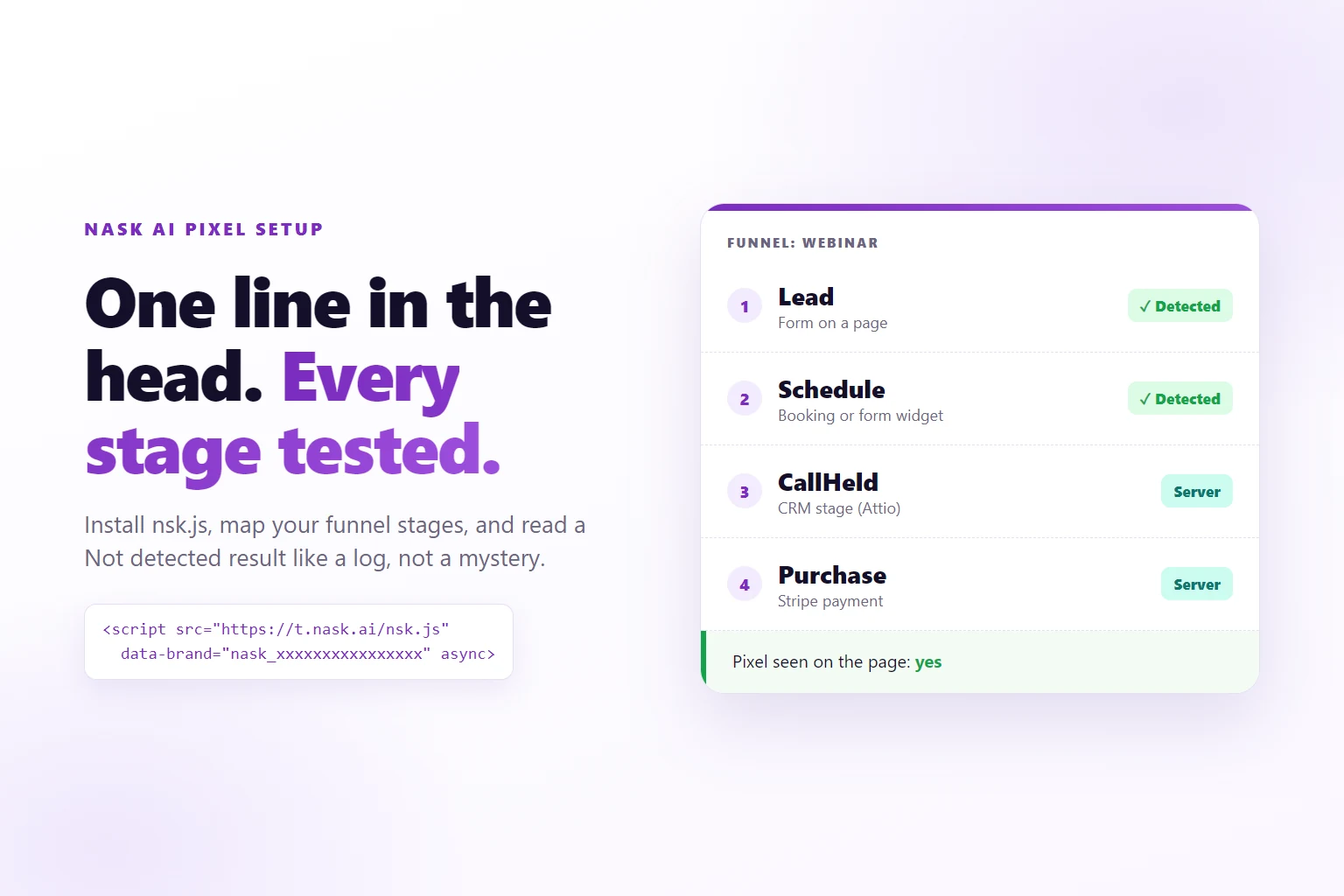
- Nask AI pixel setup starts with one script tag in the head of every page. The install card says Waiting for the pixel until nsk.js reports, then names the page it saw.
- nsk.js only reports from the brand website, its subdomains and the domains you add. A funnel step on any other host stays silent until its domain is on the list.
- A funnel is an ordered list of stages, and every stage says how it is detected: four ways on the page, three from the server.
- A form reports Lead unless its data-nsk-stage attribute names another stage. Most Not detected results on a form stage come from that one attribute.
- Every on-page stage has a live test. After 90 seconds without the stage it says Not detected, and the lines above that result already tell you which half failed.
The Nask AI pixel is nsk.js, a script you load on every page of your funnel. It catches the steps a visitor takes (a form sent, a call booked, a page reached, a step your own code reports), sends each one to Nask AI with the visitor’s click and ad identifiers, and gives the browser and server copies of each step the same event id. In Nask AI you map those steps to funnel stages and test each one live.
You run ads into a funnel with more than one step: a form, a booking, a call, a sale. Somewhere along that chain a step stops being counted, and you find out a week later when Nask AI and your CRM stop agreeing.
The fix is not more tags. It is one script on every page, a list of the stages your funnel really has, and a test per stage that tells you within 90 seconds whether it reaches Nask AI. This guide walks through all three, then shows you how to read a test that comes back Not detected.
What you are building
Three things, in the order the app lays them out.
- The pixel on your pages. nsk.js loads from
https://t.nask.ai/nsk.jswith your brand’s public id. It records each visit with the click id, the Meta cookies and the UTMs it finds, and reports the steps that matter. - A funnel with stages. Each stage has a name, an optional value, and a detection method that tells Nask AI how the stage is caught.
- A passing test per on-page stage. You open your own page through a test link, do the step, and watch the stage arrive.
With all three in place, every stage lands in Nask AI with the identifiers it needs to be matched to the ad that brought the visitor.
Why not tag every step by hand
The usual way is a Meta pixel call on each thank-you page, then a server call for each stage, then a long afternoon making sure both copies carry the same event id so Meta does not count a lead twice. Every new page or form repeats the work, and every missed id doubles a number.
nsk.js does that part for you. When a stage happens, it waits a moment for the page’s own Meta pixel call. If the page makes one, nsk.js gives it the stage’s event id, or keeps the page’s id when the page set one. If the page makes none, nsk.js fires the call itself. Either way, the copy Nask AI stores carries the same id. One stage, one event id.
Step 1: Open the pixel section in Nask AI
In Nask AI, open Brands in the sidebar and pick the brand. On the brand page, open the Growth tab and scroll past Tracking to Pixel and funnel. Conversions API sits right under it.
The section has two cards:
- 1. Install the pixel: the snippet, the live status and the Domains list.
- 2. Funnels and stages: your funnels on the left, the stages of the selected funnel on the right, and the test inside each stage.
If the first card reads “This brand has no pixel id yet. Contact Nask AI support.”, the brand has no public id to put in the snippet. Ask support before you go further, because nothing below works without it.
Step 2: Install nsk.js in the head of every page
The install card shows the snippet with your brand’s id already in it and a copy button. It looks like this, with your own id in place of the placeholder:
<script src="https://t.nask.ai/nsk.js" data-brand="nask_xxxxxxxxxxxxxxxx" async></script>The card’s own instruction is the rule: “Paste it in the head of every page. It catches forms, booking widgets and custom steps on its own.” Every page means every page in the funnel, including the thank-you pages. A stage on a page without the script cannot be caught.
Put it in the template or site-wide header your builder offers, so a new page gets it without anyone remembering. Copy it rather than retyping it: without the data-brand attribute nsk.js stops before doing anything.
Then open any page of your site. While nothing has reported, the status line reads Waiting for the pixel, and the card checks again every 5 seconds. Once nsk.js has reported from a page in the last 24 hours it reads Pixel detected on followed by that page’s address and how long ago.
If it stays on Waiting for the pixel after you load a page, the script is not on that page or the page’s domain is not allowed.
Step 3: Add every domain your funnel runs on
Under the status sits Domains. The first chip is your brand website, marked “(brand website)”. That one is always allowed and cannot be removed.
nsk.js refuses to report from a page whose host is not on this list. Subdomains of a listed domain pass: if example.com is listed, checkout.example.com and www.example.com are accepted too. A different host is not. If your booking page lives on a page builder’s own domain, or your checkout runs on a separate domain, add it.
Type the domain in the field (its placeholder is checkout.example.com) and click Add. A full address works too; the editor keeps only the host. Each added domain gets an x to remove it.
Step 4: Create a funnel and add its stages
In the second card, the left column lists your funnels. Type a name in the field that reads “New funnel, e.g. Webinar” and press the plus. The pencil beside a funnel renames it.
Select the funnel and the right column shows its stages, with a suggestion bar under them. On an empty funnel it suggests Lead by a form. After a Lead it suggests Schedule, then CallHeld, then Purchase. Add a quiz step starts a quiz funnel with QuizStart, and Add a stage opens a blank one.
The stage editor starts with Stage. Pick one of the seven standard names (Lead, Schedule, StartTrial, InitiateCheckout, Purchase, Subscribe, CompleteRegistration) or Custom name. A custom stage gets a Name field (the placeholder is “e.g. CallHeld”) and a Counts in reports as picker with the same seven names, because reports group every stage into one of them. The editor notes that a custom stage “reaches Meta under its own name, so you can optimize for it as a custom conversion.”
Names start with a letter, then letters, digits, spaces, underscores or hyphens, up to 50 characters. A custom stage cannot reuse a standard name, and one funnel cannot hold two stages with the same name.
Under the name sit Value and Predicted LTV, with the brand’s currency beside them when it is set. Both take digits and a dot only, so 1500 or 99.50, never 1,500. The Send to Meta switch is on by default; a stage with it off shows a “Not sent to Meta” badge in the list. Click Save stage.
Each saved stage is a row with its number, its name, what a custom stage counts as, and how it is detected. The arrows move it up or down, the pencil edits it, the bin removes it.
Step 5: Pick how each stage is detected
The Detected by picker tells Nask AI how the stage is caught. Picking a standard stage pre-selects the usual method: Lead, StartTrial and CompleteRegistration start on a form, Schedule on a widget, InitiateCheckout on a page visit, Purchase and Subscribe on Stripe. A custom stage starts on custom code. You can change any of them.
Seven methods, each with its own fields:
| Detected by | What catches it | What you fill in |
|---|---|---|
| Form on a page | nsk.js, when a form is sent | Page URL |
| Booking or form widget | nsk.js, when the widget reports back | Widget, Page URL |
| Page visit | nsk.js, when the address contains your text | Page address contains, Page URL |
| Custom code | your page, calling one line | Page URL |
| CRM stage (Attio) | the server, from your Attio stage | Attio stage title |
| Stripe payment | the server | nothing |
| Webhook | the server | nothing |
Form on a page. nsk.js listens to every form sent on the page and keeps the ones with an email field, or any form carrying a data-nsk attribute. It never reads password, card or similar fields. It reports the stage named in the form’s data-nsk-stage attribute, and Lead when the form names none. So a trial signup form needs one attribute:
<form data-nsk-stage="StartTrial">
  <input type="email" name="email" required>
  <button type="submit">Start my trial</button>
</form>
A form that is not a funnel step, like a site search, gets data-nsk-ignore and is never reported.
Booking or form widget. Pick the widget: Cal.com, Calendly, GoHighLevel, HubSpot, Jotform or Typeform. On the page, nsk.js listens for a finished booking from Cal.com, Calendly and GoHighLevel, which arrives as Schedule, and for a sent HubSpot form, which arrives as Lead.
Page visit. Fill in Page address contains with a piece of the address, for example /thank-you. When a visitor reaches a page whose address contains it, nsk.js reports the stage, once per browser tab session.
Custom code. For a step only your own code knows about, the editor shows the line to call, with the stage name filled in:
nsk.track('QuizFinish')The editor also shows the quiz pattern: nsk.track('QuizStart') when the quiz opens, nsk.track('QuizQuestion3') for each question, and nsk.track('QuizFinish') at the end. Call it after nsk.js has loaded on the page.
CRM stage (Attio). Type the stage title exactly as Attio shows it, for example “Call held”. The editor notes that “Attio changes arrive as offline stages, accepted up to 62 days after the click.”
Stripe payment and Webhook. “Sent by the server, no page code needed.”
Step 6: Run the test on each on-page stage
Every stage caught on the page (form, widget, page visit, custom code) has a Test button in its row. Click it and a panel opens under the row with the page address, filled in from the stage’s Page URL. Change it if the step happens on another page, then click Test this stage.
Nask AI makes a test code and shows Open the test page: your page, with nsk_debug and the code added to its address. The instruction under it is the whole job: “Open the link and complete the step, for example submit the form with a test email.”
nsk.js keeps the code for the rest of that browser tab, so a form on one page and a thank-you page after it are both part of the test. A code stays open for two hours.
Back in Nask AI, the panel fills in as things arrive:
- Pixel seen on the page: yes once nsk.js loads on the test page.
- Waiting for and the stage name, with a spinner, until the stage arrives.
- Events caught: one row per event, with its name and a badge (Stored, Duplicate or Rejected), then “Match:” and “Meta:” with what Nask AI did with it, then five flags saying whether it carried a Visitor id, fbc, fbp, utm_content and an Email.
- Detected, in green, when an event arrives under the stage’s own name or under the name it counts as, and was not rejected.
While the brand’s Sending to Meta card is on Dry run, the Meta part of the row says “Test mode, not sent to Meta”. On Live it shows “Received by Meta” with a count, or “Refused by Meta”. The panel keeps reading those statuses for 10 minutes, because they land after the event. To test again, click Start a new test.
Step 7: Read a Not detected result and fix it
If the stage does not arrive within 90 seconds, the panel shows Not detected: “The stage did not reach Nask AI in 90 seconds. We can look at this test for you.”
The diagnosis is in the Pixel seen line and the Events caught list above it. Three cases cover it.
Pixel seen on the page: no. nsk.js never reported from the test page. The usual causes:
- The snippet is not on that page, or the page was not republished after you added it. Open the page source and look for
t.nask.ai/nsk.js. - The
data-brandattribute is missing or wrong. Copy the snippet from the install card again. - The page’s host is not on the Domains list. Add it in Step 3 and start a new test.
A test page also turns on nsk.js’s own log: open the browser console and look for lines starting with [nsk]. A host that is not allowed shows “config refused” with the message “This page (…) is not one of the brand’s domains.”
Pixel seen: yes, but nothing caught. nsk.js loaded but never reported the step.
- A form with no email field is ignored. Add
data-nskto the form tag to report it anyway. - A form with
data-nsk-ignoreis never reported. Remove the attribute. - A filled field that is invisible on the page but not of type hidden makes nsk.js treat the submit as a spam bot’s and drop it. Make that field
type="hidden"or remove it. - A booking that was not finished. A widget reports only a completed booking, so pick a slot and confirm it.
- A page visit fires once per stage per browser tab session. Reloading the same tab does nothing; start a new test and open its link, which opens a fresh tab. Also check that the page address really contains your text.
- Custom code that never runs, or runs before nsk.js has loaded, or uses a name that breaks the naming rule. The console shows “bad stage name” for the last one.
- The same email sent twice within 30 seconds to the same stage counts once. The console says “duplicate”.
An event was caught, but not this stage. The step arrived under another name, or was refused.
- A form reported Lead while the stage is StartTrial or CompleteRegistration. Add
data-nsk-stagewith the stage’s name to the form, or make the stage a custom one that counts as Lead. - A HubSpot form arrives as Lead, so a stage that expects Schedule from HubSpot will not match it.
- The row says Rejected. The reason is printed in red under the row. Fix that and test again.
If none of that explains it, click Send to Nask AI support. It sends this test, with what the panel saw, to the Nask AI team, once per test. The panel then reads “Sent. Keep the pixel installed. We will email you when it is fixed.”
What you get
Every stage of the funnel arriving in Nask AI with the visitor id, the click id, the Meta cookies and the UTMs of the visit. The browser and server copies of a stage share one event id, so Meta counts it once. And every on-page stage has a test you can rerun whenever a page changes, so a broken step costs you 90 seconds, not a week of bad numbers.
Custom stages keep their own names, and reports group them under the standard name you picked. Server stages from Attio, Stripe and a webhook sit in the same funnel as the on-page ones. Read which stages to track and why, then how many ads an ad set needs.
The Conversions API section under the pixel decides whether matched stages go to Meta. While it reads Dry run, Nask AI matches every conversion, builds the event it would send, and sends nothing, which makes it the right state to test the whole funnel in.
Hand it to Claude Code
If your site lives in a repo, an agent can do the page side for you. Paste this into Claude Code in that repo:
Read https://nask.ai/nask-ai-pixel-setup-guide and install the Nask AI pixel
on my site, in this repo.

My public brand id (Nask AI, Brands, my brand, Growth, Pixel and funnel):
nask_xxxxxxxxxxxxxxxx
My funnel, in order: <stage name, page URL, what happens on that page>

Do this:
1. Add the nsk.js script tag from the article to the head of every page
   template, once per page.
2. List every form. Add data-nsk-stage with the stage name to each form
   that is not a Lead, and data-nsk-ignore to each form that is not a
   funnel step.
3. For steps that are not a form, a widget or a page visit, add
   nsk.track('<StageName>') where the step happens.
4. List every domain these pages run on, for the Domains list.
5. Give me a table of the stages to create in Nask AI: stage, Detected by,
   and Page URL or Page address contains.

Do not deploy, do not change what any form submits, do not log in to any
tool and do not touch any ad account. Show me the diff and stop at a draft.
Review the diff, publish it your usual way, create the stages from the table, and run Step 6 on each.
When not to do this
If you cannot put a script in the head of the pages where the steps happen, the on-page methods cannot work there. Build those stages from the server side instead: Stripe payment, Webhook or CRM stage (Attio).
If your funnel is one form on one page, you need one stage, not a funnel. Install the snippet, add a Lead stage, run one test, stop.
If a form renders inside another tool’s frame and that tool is not one the pixel listens to, do not assume it is caught. A stage that never passed a test is a guess.
Nask AI holds the whole funnel in one place: the pixel, the stages, the live test, and the Conversions API that sends what it catches. Set up your first funnel and test its first stage today.
Book a demoFrequently Asked Questions
Where is the pixel setup in Nask AI?
Open Brands in the sidebar, pick the brand, and open the Growth tab. The Pixel and funnel section sits under Tracking and above Conversions API. It holds two cards: 1. Install the pixel, with the snippet, the live status and the Domains list, and 2. Funnels and stages, where you add funnels, map their stages and test each one.
Does nsk.js replace the Meta pixel on my site?
No, it works beside it. When the page already calls the Meta pixel, nsk.js gives each stage one event id and puts that same id on the browser call and on the copy Nask AI stores, so the two count as one event. When the page has no Meta pixel and the brand has one, nsk.js loads it, so every stage still has a browser copy.
Why does my form stage say Not detected?
Read the two lines above the result first. Pixel seen on the page: no means the snippet is missing on that page or its domain is not on the list. If the pixel was seen, check the form itself: nsk.js reports only forms with an email field or a data-nsk attribute, and it reports them as Lead unless data-nsk-stage names another stage.
Which stages can I test from the funnels card?
The four that happen on the page: Form on a page, Booking or form widget, Page visit and Custom code. Those rows carry a Test button. CRM stage (Attio), Stripe payment and Webhook stages arrive from the server instead, so the editor notes that no page code is needed and their rows have no Test button.
Does a test send events to Meta?
A test event is a real event with a debug code attached, and it travels the same path as every other conversion. While the Sending to Meta card reads Dry run, its row says Test mode, not sent to Meta. On Live it is treated like any other conversion, so test with an email address you own. The page’s browser pixel call fires either way.