 Nask AI
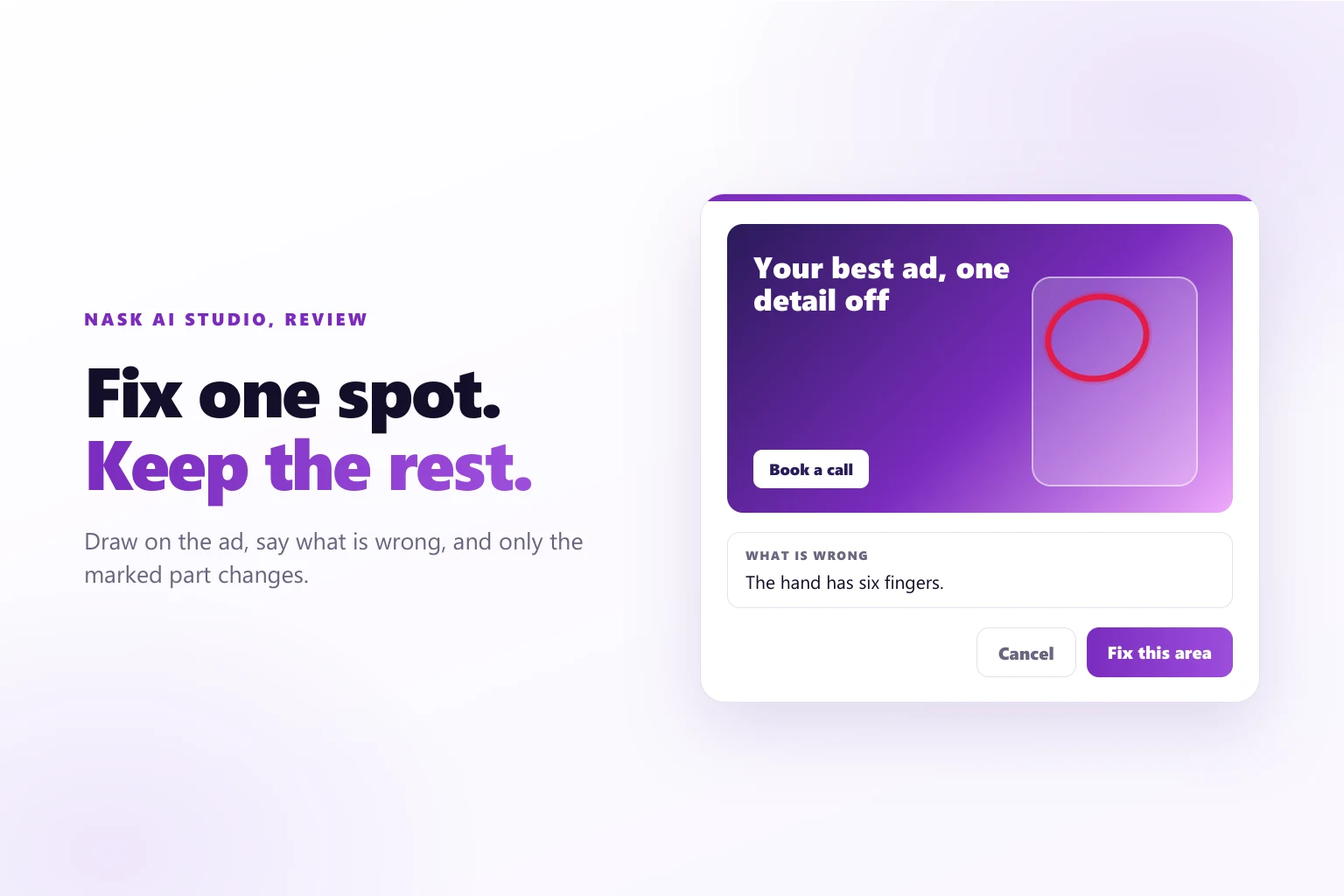
An AI ad is often 95 percent right. The headline lands, the layout works, the colors are on brand, and then there is one odd hand, a smudged logo or a product that looks slightly wrong. Until November 5 the only fix in Nask AI Studio review was to regenerate the ad with feedback, which redraws everything and can lose the parts you liked. The November 5 release adds a way to fix one spot and leave the rest alone.
What changed
Open an ad in review in Nask AI Studio. Next to the ad there is now a Fix an area option. Choose it and the ad turns into a drawing surface, right where it is, with no popup:
- Paint over the part you want changed with the red brush. Undo removes the last stroke, Cancel leaves without changes.
- Type what is wrong, for example “the hand has six fingers” or “the logo should be the purple one”.
- Click Fix this area.
Nask AI sends the ad, your marks and your words together. The instruction is strict: change only what is inside the marks, remove every mark, and keep everything else identical. The fixed ad comes back in the same review, ready to approve or reject like any other.
A fix needs a description, so a stray brush stroke cannot trigger an edit on its own, and it is charged like any other single render.
A newer image model on Fast and Quality
The same day, new Studio runs moved to a newer image model on both the Fast and the Quality setting. The chips keep their names and nothing changes in how you pick them.
Runs that already exist do not change. A run keeps the model it was made with, so an ad you approved last week will not render differently because you opened it again. A saved draft that has not run yet moves to the newer model on the same setting it already had.
Where it sits in the workflow
Fix this area lives in the review step of Nask AI Studio, after the ads are generated and before they go to publishing. See the full order on how Nask AI works.