 Nask AI
Key takeaways
- Check that the pixel loads before checking any event.
- Widgets and pages on other domains are easy to miss, so check them early.
- Consent banners and blockers stop the browser; server events do not depend on it.
- Every fix ends with a live test, not a glance at yesterday’s numbers.
A Facebook pixel that is not firing is one that loads on a page without sending the event you expect, or never loads at all, so Meta records fewer leads, bookings or sales than actually happened.
You run Facebook ads to a lead page. The form works, the calendar fills, and Ads Manager still reports far fewer leads than your CRM holds. Nothing on the page is red. That is a Facebook pixel not firing: a pixel that fails without saying so, on a funnel with more moving parts than a store.
Most advice on this problem is written for online stores, where the fix is a plugin setting. A lead funnel breaks elsewhere: the booking widget on another domain, the thank-you page that never loads, the form that submits without a page change. This guide orders the checks for a lead funnel and ends each fix with a test. It does not repeat the triage in the Nask AI pixel setup guide, which covers the Nask AI side of a Not detected result. This one is about the Meta pixel itself.
Why a pixel fails silently
The Meta pixel is a script on your page. When it runs, it loads a file called fbevents.js from Meta, creates a function named fbq, and sends a small request to Meta for each event you call. An event is one named thing that happened: PageView when a page loads, Lead when a form is sent, Schedule when a call is booked.
Nobody reports back when any of that goes wrong. A page without the script looks exactly like a page with it, and a form that sends no event still sends the form. A pixel can fail for weeks while everything you can see keeps working.
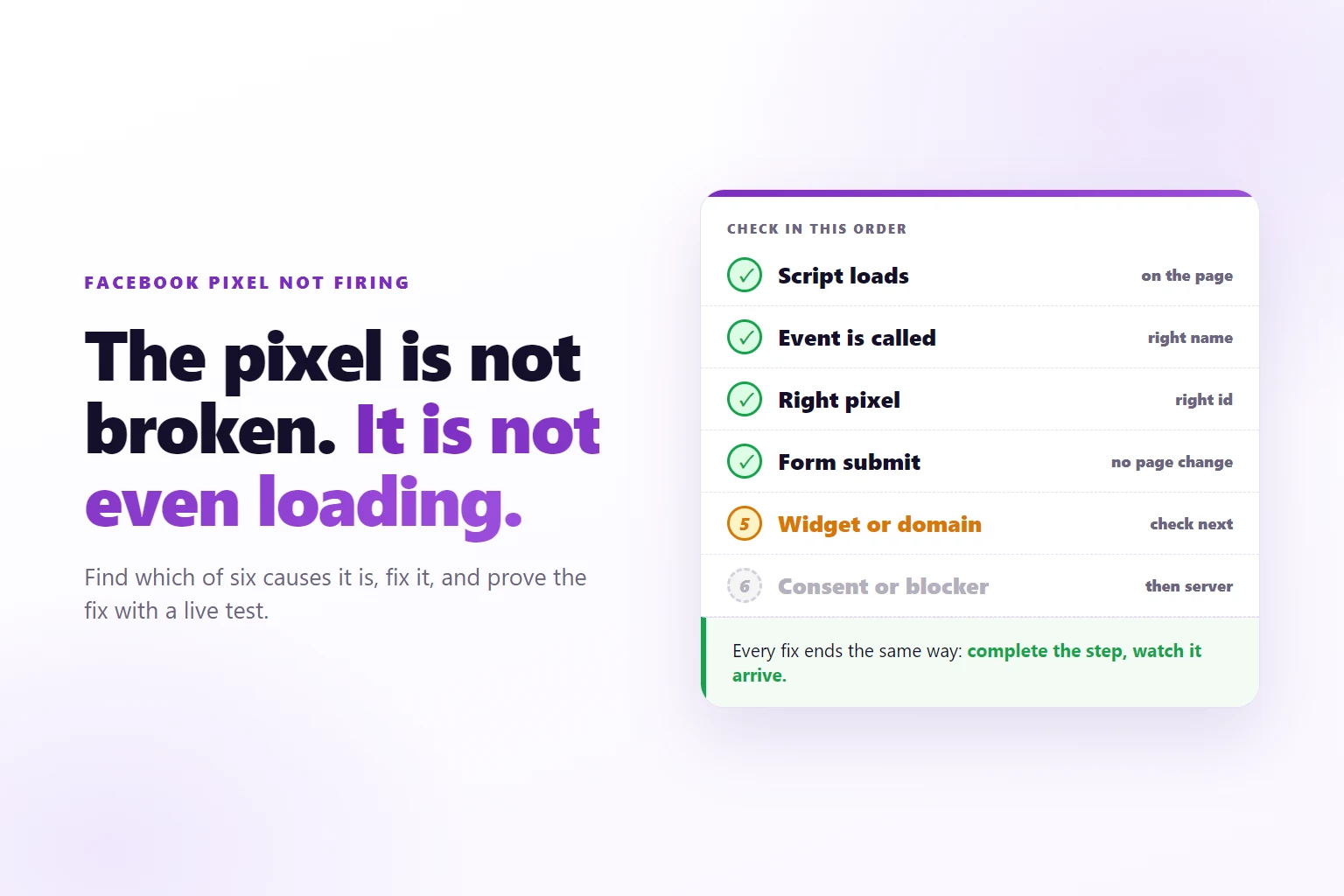
Three things have to be true in turn: the script runs, the page calls the right event at the right moment, and Meta accepts it in the pixel your ad set uses. In a lead funnel that chain breaks in six ways, listed here in the order you should check them:
- The script is not on the page.
- The script loads but the page never calls the event.
- The event goes to the wrong pixel, or under the wrong name.
- The form submits without a page change.
- The step happens in a widget or on another domain.
- A consent banner, a blocker or the browser stops the script.
The rest of this guide takes them in that order.
Is the pixel loading at all?
Start here, always. An event check on a page where the pixel never loaded tells you nothing.
- Open the live page in a private window with extensions off, so a forgotten blocker cannot answer for you.
- Open the browser’s developer tools on the Network tab, reload the page, and type fbevents into the filter. You should see one request for the file, with status 200.
- Switch to the Console tab and type the line below.
- Back on the Network tab, look for a request to Meta’s tr endpoint. Its address carries the pixel id and the event name, ev=PageView. That request is the pixel announcing the page.
typeof fbq // "function" when the pixel loaded, "undefined" when it did notIf the file is missing or fbq is undefined, the pixel is not on that page. Funnel pages are easy to get wrong:
- The page uses a different template. A page builder often keeps a separate header per funnel. The pixel is in the site header, and the landing page uses another one.
- The page is a different site. The booking page or the checkout runs on a tool’s own domain, and nobody added the code there.
- A tag manager change was never published. The tag exists in the workspace, not in the live container.
- The page was cached. The code was added, the page was not republished, and visitors still get the old copy.
- A content security policy blocks it. Some sites list the hosts allowed to serve scripts. If Meta’s is missing, the Console shows a policy error.
- An event call runs before the pixel exists. A script marked async or defer loads on its own schedule, and MDN’s description of the script element notes that async scripts run when they finish downloading, in no fixed order. If a call to fbq runs first, the Console says fbq is not defined.
In Nask AI, open Brands in the sidebar, pick the brand, open the Growth tab and find Pixel and funnel. The install card reads Waiting for the pixel until nsk.js, the Nask AI pixel, reports from a page, then Pixel detected on and the page. That status is about nsk.js, not Meta’s loader file, so run the Network check as well. When a page has no Meta pixel and the brand has one in Nask AI, nsk.js loads it.
The event fires but Meta does not show it
The PageView request goes out, and the Lead still does not appear where you look. Five causes, most likely first.
Wrong pixel. A site can carry two: an old one, or one left by a previous agency. An ad set optimizes on the pixel chosen in its settings, and events sent to another pixel are invisible to it. Compare the id in the PageView request with the id in your ad set.
Wrong name. Event names are case sensitive, so lead and Lead are different events. A custom name works too, but it has to be the same everywhere you use it.
Wrong moment. An event wired to a button click fires when the button is pressed, even if the form then fails validation. Fire the event when the step succeeds, not when it starts.
Installed twice. The same pixel in the theme, in a plugin and in a tag manager sends every event two or three times. The cost per lead looks wonderful, which is why nobody checks. The loader file should appear once in the page source.
Browser and server counting the same lead. Meta keeps a single event when the browser copy and a server copy carry the same event name and the same event id, a string generated once per event. Without a shared id you get two leads. Nask AI handles this for stages it detects: when the page already makes the Meta call, nsk.js gives the stage’s event id to that call, or keeps the id the page set itself, and the copy Nask AI stores carries the same one. The guide to tracking leads from Facebook ads to sales covers the stages behind it.
To see all five at once, use Meta’s own live view. Events Manager has a Test Events tab: you enter your page address, it opens the page in a test session, and every event from that session appears as it arrives, with the pixel it landed in. Meta’s Pixel Helper Chrome extension lists the pixels and events on the open page.
Forms that submit without a page change
Many pages send their form in the background. A message replaces the form and the address bar never changes. If your Lead event is tied to a thank-you page, that page never loads, so the event never fires. The CRM has the lead and the pixel saw nothing.
Three ways to fix it, in the order to prefer them:
- Fire the event from the form’s success callback. The code that shows the thank-you message knows the submit worked.
- Redirect to a thank-you page you own, and fire there. It works with any form tool that offers a redirect.
- Use a tracker that listens for the submit itself. nsk.js keeps every form with an email field, or any form carrying a
data-nskattribute, and reports it as Lead unless the form’sdata-nsk-stageattribute names another stage.
Option one looks like this, using a submission id your form returns:
// in the success callback, after the server accepted the form
fbq('track', 'Lead', {}, { eventID: 'lead-' + submissionId });
A related failure happens when the form does change the page. The browser can cancel a request still in flight as the old page unloads. Send the event with a request built to survive that, such as navigator.sendBeacon. nsk.js waits about a second and a half for the page’s own Meta call, then sends the stage, and sends anything still waiting through a beacon when the visitor leaves.
Tracker rules that quietly drop a form look like a pixel problem. nsk.js ignores a form with no email field unless the tag carries data-nsk, ignores a form tagged data-nsk-ignore, and drops a submit where a filled field is invisible on the page and is not of type hidden, because that is how spam bots behave. Test by sending a real form with an email address you own, on the live page. A builder’s preview mode proves nothing about the live one.
Booking widgets and other domains
A booking widget is a frame from another domain, so the pixel on your page sees a visitor open the calendar and nothing after that, unless the widget sends the page a message. Embeds report through window.postMessage, and not every embed sends it, so check the widget’s embed options, and install the pixel on every domain the funnel touches, the thank-you page included. In Nask AI, nsk.js only reports from the brand website, its subdomains and the domains you add under Domains in the install card, so a step on any other host stays silent until its domain is on the list. Tracking Calendly bookings gets its own guide.
Consent banners, blockers and browsers
Some pixels do not fire because they were told not to. Four things sit between your page and a browser running the script.
A consent banner. Where the law requires consent, the pixel is held until the visitor agrees, and a visitor who ignores the banner never loads it. That is the banner working, and it lowers your browser-side count by design. The European Commission’s data protection pages explain when consent applies to visitors in the EU.
A consent setup that never releases the script. The visitor says yes, and the rule that should then load the pixel is misconfigured. Accept the banner on the live page and repeat the load check.
A blocker. Ad and tracker blockers match known tracker hosts and stop those scripts. Several browsers also block trackers by default, as MDN describes in its overview of web privacy features.
Cookie limits. Some browsers limit how long they keep cookies written by JavaScript. A visitor who comes back after a week can arrive without the identifiers the first visit stored.
Your own browser cannot show you these, because yours works. Run the load check in a private window with a blocker on, then off, then with the banner declined, then accepted. The runs that fail show who the browser path cannot reach. The fix is a second copy of the event, sent from a server, which the last section covers.
How do you confirm the fix worked?
After every fix, run the same test, on the live page, as a visitor would.
- Open Test Events in Meta, or Nask AI’s test panel, and keep it visible.
- Open the live page in a private window.
- Complete the step: send the form with an email address you own, or book a real slot.
- Watch for the page view first, then the event, under the exact name you expect.
- Check reporting the next day.
In Nask AI, every stage caught on the page has a Test button. Click it, click Test this stage, then Open the test page and do the step. The panel shows Pixel seen on the page, then Waiting for and the stage name, and turns green with Detected when the stage arrives. Under Events caught each event carries a Stored, Duplicate or Rejected badge. After 90 seconds without the stage the panel says Not detected. While the Sending to Meta card reads Dry run, the row says “Test mode, not sent to Meta”. That label covers the server copy; the page’s own pixel still reports to Meta as it would for any visitor, so test with your own email.
Read the result against this table.
| What the test shows | What it means | Go back to |
|---|---|---|
| No page view, no event | The pixel is not loading | The load check |
| Page view, no event | The event is never called | Forms or widgets |
| Event under another name | A wrong name or wrong trigger | Wrong name |
| Event in another pixel | A wrong pixel id | Wrong pixel |
| Two events for one step | Installed twice, or no shared id | Installed twice |
| Works in your window only | A blocker or consent setting | Consent and blockers |
Reporting lags the test: Ads Manager columns can trail by hours and attribute a conversion back to the ad interaction. Judge the fix by the live test, the trend by the next day.
When to stop fixing the pixel and go server side
More pixel fixes stop paying at some point. Three signs:
- The loss comes from consent banners, blockers or cookie limits, and the browser cannot be fixed.
- The stage happens away from your site: the call held, the deal won, the payment. No pixel sees those.
- The six causes are fixed, the test passes, and the browser count still trails your CRM.
The obvious answer is to install more pixels. It does not work, because the browser is where the loss happens. The other obvious answer is to go server side and delete the browser pixel. That fails too: a server event sent alone loses the browser identifiers and the shared event id that let Meta deduplicate, and it cannot tell which ad was clicked if the page never ran.
Keep both. The pixel catches the click identifiers and fast browser events. The server copy, sent through the Conversions API, covers what the browser cannot: a visitor behind a blocker, a call held, a payment. Where consent is required, the server copy needs it too.
In Nask AI, CRM stage (Attio), Stripe payment and Webhook stages arrive from the server and need no page code. The on-page stages keep the browser copy and the server copy under one event id, and the Sending to Meta card decides whether matched stages go to Meta. While it reads Dry run, Nask AI matches every conversion and sends nothing, the right state to test the whole funnel in.
Frequently Asked Questions
How do I check if my Facebook pixel is working?
Open a live debugging view, such as the Test Events tab in Meta’s Events Manager, then complete the step yourself on the live page: submit the form or book the call. The page view should arrive first, then the event. If neither arrives, the pixel is not loading; if only the page view arrives, the event is the problem. Test the live page, not a preview.
Why does my pixel fire twice?
Usually because it is installed twice, once in the site code and once through a tag manager or plugin, or because a form event and a thank-you page visit both count as the same lead. Remove the duplicate install, and when browser and server send the same event, give both the same event id so Meta keeps one.
Do ad blockers stop the Facebook pixel?
Many do, and so do some browsers’ privacy settings and consent banners that hold scripts until the visitor agrees. That cannot be fixed in the browser. Sending the same events from a server, with consent where the law requires it, recovers events the browser never sent, as long as the form or booking also reaches your server, though without the browser’s click data those events match less well.
Why do form submissions not trigger my lead event?
Many forms submit in the background without loading a new page, so an event tied to a thank-you page never fires. Fire the event on the form’s own success callback, use a tracker that detects form submissions directly, or redirect to a thank-you page you control. Test the method you choose by submitting a real form.
How long after a fix should events appear?
Within seconds in a live test, and later in reports. Live debugging views show an event as it arrives, while Ads Manager columns can lag by hours and attribute events back to the ad interaction. Judge a fix by the live test, then check reporting the next day.
Test every stage live in Nask AI
Nask AI keeps the whole check in one place: the install status, the funnel stages, a live test per stage with the reason a stage was not detected, and the server stages that do not depend on a browser. Find the break once, then keep a test you can rerun whenever a page, form or calendar link changes.
Book a demo and watch a stage go from Waiting to Detected on your own funnel.
Book a demo